

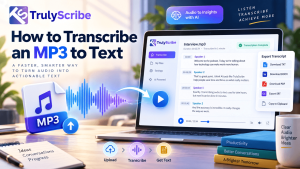
MP3 is the most common audio format in the world. Voice memos, podcast episodes, recorded interviews, lectures and phone calls all end up as MP3 files sooner or later. The trouble is that audio is slow to search, hard to quote and impossible to skim. If you want the words on a page, you need to turn the MP3 into text.
The good news is that you can transcribe an MP3 to text in minutes without typing a word. This guide walks you through the easiest method step by step, compares the other options, shares tips for better accuracy, shows how to fix common problems and explains how TrulyScribe makes the whole process simple.
Key Takeaways
- The fastest way to transcribe an MP3 to text is an AI transcription tool: upload the file, choose the language and get an editable transcript in minutes.
- You have four options: AI transcription, dictation or voice typing, manual typing and human transcription services. AI offers the best balance of speed, cost and accuracy for most people.
- Audio quality matters most. Clear speech, low background noise and a reasonable bitrate improve accuracy more than any tool setting.
- Always review the result. Check names, numbers and technical terms against the audio, especially for anything you plan to publish.
- A good transcript is more than text. Speaker labels, timestamps and easy exports to DOCX or PDF make it usable for notes, subtitles, articles and reports.
- TrulyScribe makes the process simple: upload your MP3, get a speaker-labeled, timestamped transcript in 100+ languages, fix it in the built-in editor and export it, with free monthly hours to start.
Quick Answer: How to Transcribe an MP3 to Text
The quickest route is an AI transcription tool. In short:
- Open an AI transcription tool such as TrulyScribe and upload your MP3 file.
- Select the language spoken in the recording and turn on speaker labels if there is more than one voice.
- Wait a few minutes while the AI generates your transcript.
- Review the text against the audio and fix any errors in the editor.
- Export the transcript as DOCX, PDF or text.
The rest of this guide explains each step in detail and covers what to do when things do not go smoothly.
What You Need Before You Start
- Your MP3 file. Make sure it is saved somewhere you can reach, such as your computer or phone.
- A decent recording. You can transcribe poor audio, but clean speech gives much better results.
- An internet connection. Most AI tools work in your browser and need a stable connection for uploading.
- Permission to transcribe. If the recording includes other people, make sure they know it was recorded and will be transcribed.
Method 1: Use an AI Transcription Tool (Recommended)
AI transcription tools use speech-recognition technology to convert audio into text automatically. They are fast, affordable and accurate on clear recordings, which is why they are the best choice for most people. If you are new to the technology, our beginner’s guide explains what AI transcription is and how it works.
How to transcribe an MP3 with TrulyScribe
- Create a free account. Sign up for TrulyScribe and log in to the web app. New users get free monthly hours, so you can try it on a real file without paying.
- Upload your MP3. Select your audio file and add it to your account. You can upload more than one file if you have a batch of recordings.
- Choose the language. Pick the language spoken in the recording. TrulyScribe supports 100+ languages, so there is a good chance yours is covered.
- Turn on speaker labels if needed. For interviews, meetings and podcasts, speaker labels show who said what, and timestamps help you jump back to any moment.
- Start the transcription. The AI generates your transcript, typically much faster than the length of the recording.
- Review in the editor. Play the audio alongside the text and correct names, jargon and numbers. This is the step that turns a good transcript into a great one.
- Export your transcript. Download it as DOCX or PDF to share, publish or file away.
TrulyScribe cites accuracy of up to 99.8% on clear audio, and its built-in editor makes verification quick. See the pricing page for current plans.
Method 2: Dictation or Voice Typing
Your phone or computer may have built-in dictation that turns speech into text as you talk. It is useful for dictating your own notes, but it is a poor fit for MP3 files. It works in real time through a microphone, so you would have to play the file aloud and hope the microphone picks it up cleanly. Results are usually patchy, and you lose speaker labels and timestamps. If you mainly want to dictate, see our voice to text converter page.
Method 3: Type It Out Manually
Manual transcription means listening and typing. It gives you full control, but it is very slow. A common rule of thumb is that transcribing by hand takes several times the length of the audio, and it is tiring. It only makes sense for very short clips or when you need to transcribe something a machine cannot hear clearly.
Method 4: Hire a Human Transcription Service
Professional human transcribers deliver the highest accuracy, which matters for legal, medical, broadcast and compliance work. The trade-offs are cost and turnaround time, which are both much higher than AI. Many people combine the two: AI for a fast first draft, then a human review for critical sections. Our comparison of human vs AI transcription explains when each approach makes sense.
Which Method Should You Choose?
| Method | Speed | Cost | Accuracy | Best for |
|---|---|---|---|---|
| AI transcription tool | Minutes | Free to low | High on clear audio | Most people and most projects |
| Dictation / voice typing | Real time only | Free | Poor for recordings | Your own live speech, not saved files |
| Manual typing | Very slow | Free (your time) | Depends on you | Very short clips |
| Human transcription service | Hours to days | Highest | Highest | Legal, medical or broadcast work |
For most MP3 files, AI transcription is the right answer. Choose a human service only when you need guaranteed, verified accuracy, and consider dictation or manual typing only for very specific situations.
How to Get More Accurate MP3 Transcripts
Accuracy depends more on your recording than on the tool. These habits make a real difference:
- Start with clean audio. Record in a quiet space, keep the microphone close and avoid talking over each other. Our tips on transcribing audio with background noise cover imperfect conditions.
- Watch the bitrate. Heavily compressed, very low-bitrate MP3s lose detail. A moderate bitrate is usually plenty for clear speech, but extremely low settings can hurt accuracy.
- Pick the right language. Selecting the correct language helps the AI interpret accents and vocabulary.
- Use speaker labels for multi-voice recordings. See our guide to transcribing multiple speakers accurately.
- Prepare for specialized vocabulary. Product names, acronyms and technical terms need a quick manual check. Read our guide to handling technical jargon.
- Review before you publish. Never quote or publish names, numbers or statistics without checking them against the audio.
Common MP3 Transcription Problems and Fixes
| Problem | What to do |
|---|---|
| File is too large or upload fails | Convert to a compressed MP3 or M4A, extract audio from video and use a stable connection. See our guide on transcribing long audio files. |
| Volume is too low | Normalize or boost the volume in a free audio editor before uploading. |
| Background noise or music | Reduce noise if you can, and expect to review the text more carefully. |
| Several people speaking | Turn on speaker labels and check the places where voices overlap. |
| Strong accent or mixed languages | Select the correct language and review names and unfamiliar terms. |
| Very low-quality MP3 | If the file was heavily compressed, re-record or find a better source if possible. |
What to Do With Your Transcript
Once you have the text, the audio becomes far more useful. Here are some popular next steps:
- Create show notes and summaries. Pull out the key points and turn them into short descriptions or chapter markers.
- Repurpose content. Turn podcast episodes and talks into blog posts, newsletters and social posts. Our guide for content creators has more ideas.
- Add subtitles and captions. Use the timestamped text as the basis for captions that make videos more accessible.
- Search and quote. Find the exact moment someone said something, and quote it accurately.
- Share with your team. Export to DOCX or PDF so colleagues can read, comment and act without listening to the audio.
Common Uses for MP3 to Text
- Voice memos and personal notes. Turn ideas recorded on the go into searchable text.
- Interviews. Get accurate quotes without replaying the audio. See AI transcription for customer interviews.
- Podcasts. Create transcripts for accessibility and SEO. Read about the best AI transcription for long podcasts.
- Lectures and classes. Study from text instead of replaying recordings. See our guide to AI lecture transcription.
- Meetings and calls. Keep a record of what was agreed. Learn how to transcribe Zoom and Google Meet recordings for free.
- Videos. Extract the audio and transcribe it, or see how to transcribe YouTube videos to text for free.
Is It Safe to Upload My MP3 Files?
Audio often contains personal or sensitive information, so it is worth choosing a provider carefully. Look for encryption, clear privacy policies and control over deleting your files. TrulyScribe uses encryption and secure servers to help protect your recordings. Also remember that recording laws vary by region, so make sure everyone in the recording knows about it before you transcribe it. This article is general information and not legal advice.
Conclusion
Turning an MP3 into text no longer takes hours of typing. With an AI transcription tool, you upload the file, wait a few minutes, review the result and export it, and you have a transcript you can search, quote and share. Good audio, the right language setting and a quick review will get you excellent results.
Ready to try it? You can sign up for TrulyScribe, upload your MP3 and use your free monthly hours to see how it works. If you want to compare options first, read our roundup of the best AI transcription tools in 2026 or our guide to TurboScribe alternatives.
Frequently Asked Questions (FAQs)
How do I transcribe an MP3 to text for free?
Use an AI transcription tool that offers a free tier. With TrulyScribe, new users get free monthly hours: upload the MP3, choose the language, review the transcript and export it. Free plans differ in limits, so check file length and monthly minutes first.
Can I convert an MP3 to text without software?
Yes. Most AI transcription tools work in your web browser, so there is nothing to install. You simply upload the file, wait for the transcript and download it.
How accurate is MP3 to text transcription?
Accuracy depends mostly on audio quality, accents, background noise and technical vocabulary. With clear audio, leading AI tools perform very well, and TrulyScribe cites accuracy of up to 99.8%. Always review important details against the recording.
How long does it take to transcribe an MP3 file?
AI transcription is typically much faster than real time, so a short file takes a minute or two and longer recordings take proportionally more. Upload speed and file length affect the total time.
Does MP3 quality affect transcription accuracy?
Yes. Very low-bitrate or heavily compressed MP3s lose detail, and noisy or quiet recordings are harder to transcribe. A clear recording at a reasonable bitrate gives the best results.
Can I transcribe an MP3 in another language?
Yes. Many tools support multiple languages, and TrulyScribe supports 100+ languages. Choose the correct language before transcribing, and read our guide to multilingual AI transcription for more tips.
Can I transcribe MP3 files that have multiple speakers?
Yes. Turn on speaker labels so the transcript shows who said what, and check the moments where voices overlap, since labels are most likely to slip there.
What can I do if my MP3 file is too long to upload?
Convert it to a compressed format, extract the audio if it came from a video and use a stable connection. If it still fails, check the tool’s limits. Our guide on transcribing long audio files without splitting them explains what to try.
Relevant Articles
Keep exploring with these related guides from the TrulyScribe blog:
- How to Transcribe Long Audio Files Without Splitting Them: handle big recordings in one go.
- How to Transcribe Audio with Background Noise: get cleaner results from imperfect recordings.
- How to Transcribe a YouTube Video to Text for Free: turn video into searchable text.
- How to Transcribe Google Meet or Zoom Recordings for Free: a step-by-step upload guide.
- What Is AI Transcription? A Beginner’s Guide: learn how it works.
- Human vs AI Transcription: A Complete Comparison: when to choose speed and when to choose human review.
- Best AI Transcription Tools in 2026: an up-to-date comparison of leading platforms.