

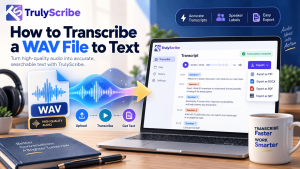
WAV is the format professionals reach for when quality matters. Studio recordings, field recorders, call-recording systems, interviews captured on dedicated equipment and archived oral histories are all commonly saved as WAV files. The format preserves every detail of the sound, which is wonderful for production but less convenient when you simply want the words on a page.
The good news is that you can transcribe a WAV file to text quickly and accurately, as long as you handle a few WAV-specific quirks such as very large file sizes and multi-channel audio. This guide covers the easiest method step by step, explains how to prepare large files, shows how to fix common problems and explains how TrulyScribe fits in. If your recording is an MP3 instead, see our companion guide on how to transcribe an MP3 to text.
Key Takeaways
- You can transcribe a WAV file to text with an AI transcription tool in a few steps: upload the file, choose the language, review the transcript and export it.
- WAV files are large because they are uncompressed. That is great for quality but can cause slow uploads and size-limit errors, so know your tool’s limits.
- You rarely need full studio quality for transcription. Speech recognition works well with mono audio at a moderate sample rate, so converting a huge WAV to a smaller file is often safe.
- Multi-channel and professional recordings need a little care. Stereo calls, field recorders and broadcast files may need mixing to mono or checking channel levels first.
- Review the result. Even strong AI needs a quick check of names, numbers and specialist terms, especially in recordings used for legal, research or publishing work.
- TrulyScribe keeps it simple: upload your WAV, get a speaker-labeled, timestamped transcript in 100+ languages, fix it in the built-in editor and export to DOCX or PDF, with free monthly hours to get started.
Quick Answer: How to Transcribe a WAV File to Text
- Open an AI transcription tool such as TrulyScribe and upload your WAV file.
- Choose the language spoken in the recording and turn on speaker labels if there is more than one voice.
- Wait a few minutes while the AI creates your transcript.
- Review the text against the audio and correct any errors in the editor.
- Export the transcript as DOCX, PDF or text.
If the upload is slow or fails, the cause is almost always the file size. The sections below explain how to fix that without losing accuracy.
Why WAV Files Are Different
WAV is an uncompressed audio format, which means it stores sound with no data thrown away. That is why audio engineers love it, and also why the files are so big. A single hour of CD-quality stereo can run to roughly 600 MB, and longer recordings or higher settings go well beyond that.
For transcription, that has three practical consequences:
- Size limits. Many tools set a maximum file size, so a WAV may be rejected even when the recording is not especially long.
- Slow uploads. Large files take longer to send, and a weak connection can cause failures.
- Unnecessary detail. Speech recognition does not need studio-grade fidelity, so you can often shrink the file without hurting accuracy.
Here is how common WAV settings compare for an hour of audio:
| WAV setting (16-bit) | Approx. size per hour | Good for |
|---|---|---|
| 44.1 kHz stereo (CD quality) | About 600 MB | Music, studio work, archiving |
| 44.1 kHz mono | About 300 MB | Voice recordings at high quality |
| 16 kHz mono | About 115 MB | Speech transcription, with plenty of detail for voices |
Sizes are approximate and depend on the exact settings, but they show why converting a high-resolution stereo file to mono speech audio can cut its size dramatically.
What You Need Before You Start
- Your WAV file, saved on your computer or another device you can upload from.
- A stable internet connection, especially for large files.
- Knowledge of the language spoken in the recording and, ideally, how many speakers there are.
- Permission to transcribe, if the recording includes other people.
Method 1: Transcribe a WAV File with an AI Tool (Recommended)
AI transcription tools use speech recognition to convert audio into text automatically, and they are fast, affordable and accurate on clear recordings. If you are new to the technology, read our beginner’s guide to what AI transcription is and how it works.
How to transcribe a WAV file with TrulyScribe
- Create a free account. Sign up for TrulyScribe and log in to the web app. New users get free monthly hours, so you can test a real recording without paying.
- Check the file size. If your WAV is very large, follow the preparation steps in the next section first. Otherwise you can upload it as it is.
- Upload the WAV file. Add your audio file to your account. You can upload several files if you have a batch of recordings.
- Choose the language. TrulyScribe supports 100+ languages, so select the one spoken in your recording.
- Turn on speaker labels if needed. For interviews, meetings and calls, labels and timestamps make the transcript far easier to use.
- Start the transcription. The AI generates your transcript, which is usually much faster than the length of the recording.
- Review in the editor. Play the audio alongside the text and fix names, jargon and numbers.
- Export. Download as DOCX or PDF to share, archive or publish.
TrulyScribe cites accuracy of up to 99.8% on clear audio, and the built-in editor makes verification quick. See the pricing page for current plans.
How to Prepare a Large WAV File
If your file is too large, you do not have to give up quality that matters. Keep your original WAV as an archive and create a smaller working copy for transcription:
- Convert to mono. Speech does not need stereo. Mixing to mono halves the size.
- Lower the sample rate. A sample rate of 16 kHz is generally plenty for speech recognition, though 44.1 or 48 kHz also work fine if your tool accepts them.
- Or save in a compressed format. FLAC is lossless and about half the size of WAV, while MP3 or M4A at a moderate bitrate are much smaller and fine for clear speech.
- Check the result. Listen to a few seconds of the new file to make sure the voices are clear before you upload.
If you are comfortable with the command line, the free tool ffmpeg can do this in one step. This command converts a WAV to a mono, 16 kHz WAV:
ffmpeg -i recording.wav -ac 1 -ar 16000 recording-mono.wav
And this one converts it to a compact MP3 instead:
ffmpeg -i recording.wav -ac 1 -b:a 96k recording.mp3
Prefer a visual tool? Free audio editors and online converters can do the same conversions. For very long recordings, our guide on transcribing long audio files without splitting them has more tips.
Multi-Channel and Professional WAV Recordings
WAV files from professional equipment or phone systems can contain more than a single track of sound. A few things are worth checking:
- Stereo calls. Some call-recording systems put each speaker on a separate channel. Mixing to mono usually captures both voices, but listen first to confirm that neither channel is silent or distorted.
- Multi-track field recordings. If you used several microphones, you may need to mix the tracks together or choose the best one.
- Very large broadcast files. Standard WAV files have a size ceiling of about 4 GB, so very long recordings may be saved in extended variants. Converting to a compressed format is the simplest workaround.
- Background hum and room echo. Professional recordings are usually clean, but any noise is easier to deal with before transcription. Our tips on transcribing audio with background noise can help.
Other Ways to Convert WAV to Text
Dictation or voice typing
Built-in dictation works in real time through a microphone, so it is designed for your own live speech rather than saved files. Playing a WAV aloud to your device gives patchy results and no speaker labels or timestamps. If you mainly want to dictate, see our voice to text converter page.
Manual typing
You can listen and type, but it takes several times the length of the audio and is tiring. It only makes sense for very short clips.
Human transcription services
Professional transcribers offer the highest accuracy, which matters for legal, medical and broadcast work, but at a higher cost and slower turnaround. Many people use AI for a fast draft and add human review for critical sections. Our comparison of human vs AI transcription explains when each approach fits.
WAV vs Other Formats for Transcription
| Format | Quality | File size | Notes for transcription |
|---|---|---|---|
| WAV | Uncompressed, full detail | Very large | Works well but may hit size limits |
| FLAC | Lossless, compressed | About half of WAV | Same quality, smaller; check tool support |
| MP3 / M4A | Lossy, compressed | Small | Fine for speech at a moderate bitrate |
For transcription, the format matters less than the clarity of the speech. A clean MP3 will usually beat a noisy WAV. Use WAV directly if your tool accepts it and the file size is manageable, and convert when you need to.
How to Get More Accurate WAV Transcripts
- Start with clear speech. Close microphones, quiet rooms and minimal crosstalk matter more than the file format.
- Set the correct language. It helps the AI handle accents and vocabulary.
- Use speaker labels for multiple voices. Read our guide to transcribing multiple speakers accurately.
- Prepare for specialist terms. Product names, acronyms and technical vocabulary deserve a quick check. See our guide to handling technical jargon.
- Review key sections line by line. Quotes, figures and legal statements should always be checked against the audio.
Common WAV Transcription Problems and Fixes
| Problem | What to do |
|---|---|
| Upload is slow or fails | Convert to mono, lower the sample rate or save as a compressed format. Use a stable connection. |
| “File too large” message | Check the size limit. Convert to FLAC or MP3 or reduce the length of the recording if needed. |
| Very quiet recording | Normalize the volume in a free audio editor before uploading. |
| Voices on separate channels | Mix down to mono so both speakers are captured together, or check each channel level first. |
| One channel sounds empty or distorted | Listen to each channel. If one is silent, use the good channel only. |
| Hum, hiss or room echo | Apply gentle noise reduction and expect to review more carefully. |
| Several speakers | Turn on speaker labels and check places where voices overlap. |
Who Transcribes WAV Files?
- Researchers and journalists. Interviews captured on professional recorders are often WAV. See transcription for market research interviews and AI transcription for customer interviews.
- Call centers and sales teams. Many phone systems export recordings as WAV. Learn how to transcribe conference calls for free.
- Podcasters and audio producers. Raw podcast sessions are typically WAV, and a transcript speeds up editing and show notes.
- Legal and compliance teams. Recordings of meetings, hearings and statements need accurate, reviewable text.
- HR and recruiting. Interview recordings and documentation benefit from a clear record. See AI transcription for HR and recruitment.
- Archivists and oral historians. Long-term collections are often stored as uncompressed WAV for preservation.
Is It Safe to Upload My WAV Files?
Professional recordings often contain sensitive information, so choose a provider carefully. Look for encryption, clear privacy policies and control over deleting your files. TrulyScribe uses encryption and secure servers to help protect your recordings. Also remember that recording laws vary by region, so make sure everyone in the recording knows about it before you transcribe it. This article is general information and not legal advice.
Conclusion
Transcribing a WAV file is straightforward once you account for its size. Upload the file or a smaller working copy, choose the language, turn on speaker labels, review the result and export it. You keep your pristine original and gain a searchable, shareable transcript.
Ready to try it? You can sign up for TrulyScribe, upload a WAV file and use your free monthly hours to see how it works. To compare options first, read our roundup of the best AI transcription tools in 2026 or our guide to TurboScribe alternatives.
Frequently Asked Questions (FAQs)
How do I transcribe a WAV file to text?
Upload the WAV to an AI transcription tool, select the language, turn on speaker labels if needed, review the transcript in the editor and export it as DOCX, PDF or text. With TrulyScribe, new users get free monthly hours to try it.
Can I convert WAV to text for free?
Yes. Several tools offer free tiers, including TrulyScribe, which gives new users free monthly hours. Free plans differ in file length, size limits and features, so check them first.
Why is my WAV file too large to upload?
WAV is uncompressed, so files are very large, roughly 600 MB per hour for CD-quality stereo. Convert to mono, lower the sample rate or save as FLAC or MP3 to reduce the size without hurting speech accuracy.
Do I need to convert WAV to MP3 before transcribing?
Not necessarily. If your tool accepts WAV and the file size is manageable, you can upload it directly. Convert only if the file is too large or the upload fails.
Does WAV give better transcription accuracy than MP3?
Only slightly, if at all. For speech, clarity matters more than format, and a clean MP3 at a reasonable bitrate often performs as well as a WAV. A noisy WAV will transcribe worse than a clean MP3.
How accurate is WAV to text transcription?
Accuracy depends on audio quality, accents, background noise and technical vocabulary. With clear audio, leading AI tools perform very well, and TrulyScribe cites accuracy of up to 99.8%. Always review important details against the recording.
Can I transcribe a WAV file in another language?
Yes. Many tools support multiple languages, and TrulyScribe supports 100+ languages. Choose the correct language before you start, and read our guide to multilingual AI transcription for more tips.
What if my WAV has two speakers on separate channels?
Mix the channels down to mono so both voices are captured together, after listening to each channel to confirm neither is silent. Then turn on speaker labels so the transcript shows who said what.
Relevant Articles
Keep exploring with these related guides from the TrulyScribe blog:
- How to Transcribe an MP3 to Text: Step-by-Step Guide: the companion guide for MP3 files.
- How to Transcribe Long Audio Files Without Splitting Them: handle big recordings in one go.
- How to Transcribe Audio with Background Noise: get cleaner results from imperfect recordings.
- Free Conference Call Transcription: turn recorded calls into text.
- What Is AI Transcription? A Beginner’s Guide: learn how it works.
- Human vs AI Transcription: A Complete Comparison: when to choose speed and when to choose human review.
- Best AI Transcription Tools in 2026: an up-to-date comparison of leading platforms.