

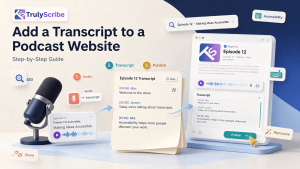
You have put hours into recording and editing your podcast, and every episode is full of useful, quotable, searchable content. But to a search engine, an episode page with a play button and two lines of show notes looks nearly empty. To a listener who cannot or would rather not listen, it offers nothing at all. A transcript fixes both problems.
This guide shows you how to add a transcript to a podcast website: where transcripts should live, how to create an accurate one, how to format it, how to publish it on your episode pages and in your RSS feed, and how platforms handle it. Along the way, we show how TrulyScribe fits into the workflow.
Key Takeaways
- There are two places to put a podcast transcript: on your episode page, where it helps readers and search engines, and in your RSS feed, where podcast apps can display it.
- Start with an accurate transcript. Run the episode through an AI tool such as TrulyScribe, then fix names, terms and speaker labels before you publish anything.
- Format it for people, not just machines. Speaker names, short paragraphs, timestamps and a summary at the top make a transcript readable and useful.
- Know your file formats. On-page transcripts are simply text in your post, while in-feed transcripts usually need a timed caption file such as VTT or SRT.
- Platform support varies and changes. Apple Podcasts can show transcripts from your feed, while Spotify has its own approach, so check each platform’s current rules.
- Transcripts pay off in several ways: accessibility, search visibility, easier repurposing into articles and social posts, and a better experience for listeners who prefer to read.
Why Add a Transcript to Your Podcast Website?
- Accessibility. Transcripts make your show available to deaf and hard-of-hearing listeners and anyone who prefers reading. Our article on video transcription and accessibility explains why this matters.
- Search visibility. Search engines read text, not audio. A transcript gives them thousands of words to understand, which can help your episodes appear for the topics you discuss.
- Better listener experience. People can skim, search and find the moment they need, and non-native speakers can read along.
- Easy repurposing. A transcript is the raw material for blog posts, newsletters, quotes and social posts. See our guide for content creators.
- Quotability and sharing. Journalists, guests and fans can find and cite exact words.
- A permanent archive. Searchable text turns your back catalog into a knowledge base. See how to build a knowledge base from transcripts.
Quick Answer: How to Add a Transcript to a Podcast Website
- Transcribe your episode audio with an AI tool such as TrulyScribe.
- Edit the transcript: fix names, terms and speaker labels.
- Format it with speaker names, paragraphs and timestamps.
- Paste it into your episode page below the player, or in a collapsible section.
- If your host supports it, upload a caption file so podcast apps can display it too.
Two Places a Podcast Transcript Can Live
People often mix up two different things: a transcript shown on your website and a transcript delivered through your podcast feed. You can, and ideally should, do both.
| Where | What it is | What you need |
|---|---|---|
| Episode page on your website | The transcript appears as text on the page next to the audio player and show notes | A clean, formatted text transcript |
| RSS feed | The feed links to a transcript file so podcast apps can display it | A timed caption file, typically VTT or SRT, supported by your podcast host |
| Platform uploads | You upload a transcript directly in a platform’s own dashboard | A caption file in the format that platform accepts |
The website version is the simplest and has the biggest search benefit. The feed version reaches listeners inside their podcast apps. This guide covers both.
Step 1: Create an Accurate Transcript
Everything depends on a good first draft. AI transcription is the fastest and most affordable way to get one, and it is accurate on clear audio. If you are new to the technology, read our beginner’s guide to what AI transcription is and how it works.
How to transcribe a podcast episode with TrulyScribe
- Create a free account. Sign up for TrulyScribe and log in to the web app. New users get free monthly hours, so you can test a real episode without paying.
- Upload your episode. Add the audio or video file. If you only have a finished MP3, see our guide to transcribing an MP3 to text, and for video episodes, transcribing an MP4 to text.
- Choose the language and speaker labels. TrulyScribe supports 100+ languages, and speaker labels help for interviews and co-hosted shows.
- Generate the transcript. The AI usually finishes much faster than the length of the episode.
- Edit in the built-in editor. Play the audio alongside the text and correct errors. TrulyScribe cites accuracy of up to 99.8% on clear audio, and the editor makes verification quick.
- Export. Download the transcript as DOCX, PDF or text for the next steps. Check your export options if you also need a timed caption file.
Long episodes are no problem in principle, but check file limits first. Our guide to transcribing long audio files without splitting them and our roundup of the best AI transcription for long podcasts explain what to look for. See the pricing page for current plans.
Step 2: Edit and Clean the Transcript
A raw AI transcript is a draft. Before it goes public, spend a few minutes on quality:
- Name your speakers. Replace “Speaker 1” and “Speaker 2” with real names. Our guide to transcribing multiple speakers accurately can help with panels and group episodes.
- Fix names, brands and jargon. Guest names, company names and technical terms are the most common errors. See our guide to handling technical jargon.
- Decide how verbatim to be. Most podcasts publish a lightly cleaned transcript, removing most filler words and false starts while keeping the meaning and tone. Pick a style and stay consistent.
- Mark sound cues if useful. Notes such as [laughs] or [music] can help accessibility, and you should use them sparingly.
- Handle noisy sections. If the audio had problems, check those parts carefully. Our tips on transcribing audio with background noise can help.
- Check sensitive content. Confirm that guests are comfortable with everything being published word for word.
Step 3: Format the Transcript for Readers
A wall of text will not be read. A little structure makes a big difference:
- Start with a short summary. Two or three sentences at the top tell readers and search engines what the episode covers.
- Use speaker names. Put each speaker’s name in bold at the start of their turn.
- Break it into short paragraphs. Aim for a few sentences each.
- Add timestamps. Occasional timestamps, such as every few minutes or at topic changes, help readers jump to the audio.
- Add headings for topics. Turn major topic changes into subheadings, which also helps SEO.
- Include links. Link to resources, guests and related episodes mentioned in the conversation.
Step 4: Publish the Transcript on Your Episode Page
Where the text goes depends on your website setup, but the principle is the same: put real, selectable text on the page, ideally in the HTML. Here are the common layouts:
| Layout option | Pros | Cons |
|---|---|---|
| Full text below the player | Simple, fully visible to readers and search engines | Makes long pages very long |
| Collapsible “Read the transcript” section | Keeps the page tidy while keeping text in the HTML | Some readers may not notice it, so label it clearly |
| Separate transcript page | Clean episode page and a dedicated URL for the transcript | Splits attention across two pages |
| Downloadable PDF only | Easy to share and print | Weaker for search and quick reading, so use alongside on-page text |
| Time-synced interactive transcript | Best listener experience, since clicking text jumps the audio | Needs a host, plugin or player that supports it |
For most podcasts, a collapsible “Read the transcript” section below the player and show notes is a good balance. If you use WordPress, you can usually paste the formatted text into the post editor, and some podcast plugins and themes include a transcript field, so check yours. Whatever layout you choose, keep the text as real page content rather than only an image or a downloadable file, so that search engines and screen readers can read it.
A few practical tips:
- Place it near the top of the page, after the player, summary and show notes, so people can find it.
- Label it clearly, with a heading such as “Episode transcript.”
- Offer a download as a PDF or DOCX for readers who want to save or print it.
- Add internal links to related episodes and resources inside the transcript where natural.
Step 5: Add the Transcript to Your RSS Feed
Podcast apps can show transcripts directly in their players if your feed points to a transcript file. The Podcasting 2.0 standard defines a transcript tag for this, and many podcast hosts let you upload a file per episode and add the tag for you. Most apps want a timed caption format, commonly VTT or SRT, though hosts differ in which formats they accept.
- Check your host. Look for a “transcript” option in your episode settings. Many popular hosts support uploads, but formats vary, so read your host’s help pages.
- Use a timed caption file. A plain text transcript may not be accepted for in-app display. If your export does not include a caption format, see our guide to export formats for video editing or use your host’s tools to generate one.
- Use your corrected version. Upload the edited transcript so listeners see the accurate text.
- Test the feed. Check that the transcript appears in the apps you care about after your feed refreshes.
How Podcast Platforms Handle Transcripts
Platform rules evolve quickly, so treat this table as a snapshot and check each platform’s current documentation:
| Platform | How transcripts work (check current rules) |
|---|---|
| Apple Podcasts | Can display transcripts from your RSS feed using VTT or SRT files, and also generates its own. Providing your own lets you control the wording. |
| Spotify | Uses its own auto-generated transcripts and lets you upload a transcript through Spotify for Creators. At the time of writing, it does not read transcripts from your RSS feed. |
| Other podcast apps | Several apps, including Pocket Casts, Podcast Addict, AntennaPod and Castro, support the transcript tag in the RSS feed. |
| YouTube | If you publish episodes as video, you can upload a caption file or edit automatic captions in YouTube Studio. |
Because support differs, publishing the transcript on your own website is the one approach that works regardless of platform, and it is the one that benefits your site’s search visibility most.
SEO Tips for Podcast Transcripts
- Write a strong page title and summary. The transcript supports them, but does not replace them.
- Use headings for topics. They give search engines and readers a clear outline.
- Keep the transcript on a crawlable page. Avoid hiding it behind logins or inside images.
- Link internally. Connect each episode to related episodes, guests and resources.
- Avoid duplicate pages. If the same transcript appears on several URLs, point search engines to the main version.
- Do not stuff keywords. A natural, accurate transcript is best, and you should never add keywords that were not said.
Accessibility Tips
- Make the transcript easy to find with a clear label and link.
- Use simple, readable formatting with real headings and paragraphs.
- Include relevant non-speech sounds where they matter for understanding.
- Aim for accuracy. Errors can mislead readers who rely on the transcript, so review before publishing.
- Consider captions for video episodes, and see our guide to video transcription and accessibility.
Ways to Reuse Your Transcript
- Blog posts and articles. Turn the best segments into standalone posts.
- Newsletters. Share highlights and quotes.
- Social posts and pull quotes. Use timestamps to find the strongest moments.
- Show notes and chapters. Generate summaries and timestamps from the text.
- Subtitles and translations. Use the transcript as the basis for captions and localized versions. See how AI transcription powers global video localization.
- YouTube captions. If you publish video episodes, see our guide to transcribing YouTube videos to text.
A Time-Saving Workflow for Every Episode
- Record and edit the episode as usual.
- Upload the final audio to TrulyScribe as soon as it is ready.
- Review the transcript while you write show notes, since you are already thinking about the content.
- Format with a template so every episode page looks the same.
- Publish the transcript on the episode page and in your feed if your host supports it.
- Reuse the text for newsletters and social posts within the same week.
A consistent routine means the transcript becomes a small, repeatable step rather than a big project.
Common Mistakes to Avoid
- Publishing the raw AI draft. Always review names, numbers and speaker labels.
- Skipping speaker names. A transcript without clear speakers is hard to follow.
- Using only a downloadable file. Put real text on the page.
- Assuming every app shows your transcript. Platform support differs, so also publish on your website.
- Forgetting guest permission. Make sure guests are happy with a public transcript.
- Making it hard to find. Hidden or unlabeled transcripts deliver little benefit.
Conclusion
Adding a transcript to your podcast website takes only a little extra effort and rewards you in several ways: better accessibility, stronger search visibility and a pile of ready-made content to reuse. Start with an accurate AI transcript, edit it, format it for readers, publish it on your episode page and add it to your feed where your host supports it.
Ready to try it? You can sign up for TrulyScribe, upload your next episode and use your free monthly hours to create a transcript you can publish today. To compare options first, read our roundup of the best AI transcription tools in 2026 or our guide to TurboScribe alternatives.
Frequently Asked Questions (FAQs)
How do I add a transcript to my podcast website?
Transcribe the episode with an AI tool, edit and format the text, then paste it into your episode page below the player or in a collapsible section. If your podcast host supports it, also upload a caption file so podcast apps can display it.
Do I need a transcript for every podcast episode?
It is not required, but it is strongly recommended. Transcripts improve accessibility and search visibility and make repurposing easier. A consistent routine makes it easy to do for every episode.
What format should a podcast transcript be in?
For your website, formatted text in the page is best. For podcast apps, a timed caption file such as VTT or SRT is typically needed, and hosts differ in what they accept, so check your host’s documentation.
Do podcast transcripts help SEO?
They can. A transcript gives search engines a large amount of relevant text to understand your episode, which can help it appear for the topics you discuss. Quality, structure and a good page summary still matter.
Does Spotify show transcripts from my RSS feed?
At the time of writing, Spotify uses its own auto-generated transcripts and lets you upload a transcript through Spotify for Creators, rather than reading one from your RSS feed. Policies change, so check Spotify’s current documentation.
Does Apple Podcasts support transcripts?
Yes. Apple Podcasts can display transcripts from your feed using VTT or SRT files, and it also generates its own. Providing your own transcript lets you control the wording.
How accurate is AI for podcast transcripts?
With clear audio, leading AI tools perform very well, and TrulyScribe cites accuracy of up to 99.8%. Names, jargon, crosstalk and noisy sections still need a human review before you publish.
Can I transcribe a podcast in another language?
Yes. Many tools support multiple languages, and TrulyScribe supports 100+ languages. Choose the correct language before you start, and read our guide to multilingual AI transcription for more tips.
Relevant Articles
Keep exploring with these related guides from the TrulyScribe blog:
- Best AI Transcription for Long Podcasts: handle long episodes without limits.
- Best AI Transcription Tools for Content Creators: picks for podcasters and video makers.
- Video Transcription for Accessibility: ADA and WCAG: why transcripts and captions matter.
- How to Transcribe an MP3 to Text: Step-by-Step Guide: the easiest way to transcribe finished episodes.
- How to Transcribe Long Audio Files Without Splitting Them: handle big recordings in one go.
- Build a Knowledge Base from Video Transcripts: organize and reuse your content.
- Best AI Transcription Tools in 2026: an up-to-date comparison of leading platforms.