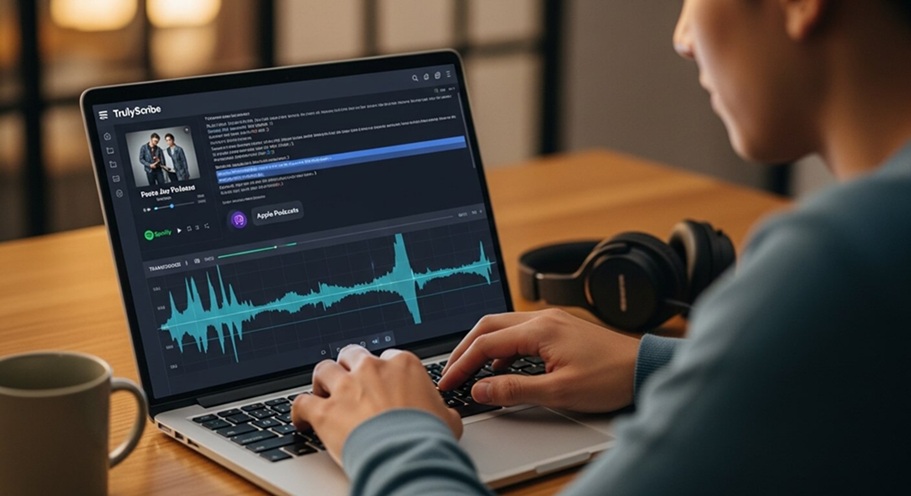
Trulyscribe

How-To Guides

How to Transcribe Spotify & Apple Podcasts Episodes
How-To Guides, AI Transcription

How to Transcribe Spotify Podcasts or Apple Podcasts Episodes (2026)

You’re listening to a podcast episode and someone drops a killer insight — a framework, a statistic, a quote you want to use. Or maybe you’re a content creator who wants to turn a 45-minute podcast episode into a blog post, a newsletter, or a series of social media captions. Or you’re a researcher who needs to reference spoken content in writing. The problem? Spotify and Apple Podcasts don’t give you a download button or a built-in transcription feature for most episodes. Getting the text out requires a workaround. This guide walks you through every working method to transcribe Spotify and Apple Podcasts episodes in 2026 — from the simplest free approaches to more flexible options for power users. No technical background needed. Why People Transcribe Podcast Episodes Before we get into the how, it’s worth understanding the range of reasons people do this — because the best method often depends on your use case: The Challenge: Why You Can’t Just “Download” a Transcript Neither Spotify nor Apple Podcasts provides a universal transcript download feature for listeners. Here’s why: So while both platforms have made progress, they haven’t solved the problem for people who need a usable, downloadable text file. That’s where the methods below come in. Methods at a Glance Method Works For Free? Difficulty Download + TrulyScribe Spotify & Apple ✅ Yes — generous free tier Easy RSS feed audio download Apple Podcasts (most) ✅ Yes Easy Spotify Web Player + recorder Spotify ✅ Yes Medium Third-party podcast sites Both platforms ✅ Often free Easy Chrome extension capture Both platforms ✅ Free extensions available Easy Contact the podcaster Both platforms ✅ Yes (if they share) Easy * Availability may vary by episode, region, and platform updates. Always check the podcast’s own website first — many shows publish official transcripts. Method 1: Check If a Transcript Already Exists (Do This First) Before attempting any workaround, spend 60 seconds checking whether a transcript already exists. This is the easiest path and works more often than you’d expect. On Spotify: On Apple Podcasts: On the podcast’s own website: 💡 Time-saver:  Shows like Lex Fridman, Huberman Lab, Tim Ferriss, and How I Built This publish detailed transcripts on their websites. Always check there first before using any tool. Method 2: Download the Audio File and Transcribe It with TrulyScribe (Best Method) This is the most reliable method and works for almost every podcast episode on both platforms. The idea is simple: get the audio file, upload it to an AI transcription tool, and download the text. Here’s how to do it step by step. Step 1: Get the Audio File For Apple Podcasts (via RSS feed): Most podcasts are publicly distributed via RSS feeds, which means the audio files are accessible without any special tools. For Spotify (via web player + audio capture): Spotify streams audio and doesn’t allow direct downloads for free users. The cleanest workaround is to use your computer’s audio recording capability. ⚠️ Important note:  Only transcribe podcast content for personal use, research, accessibility, or content you have rights to repurpose. Always respect copyright and the podcast’s terms of use. Step 2: Transcribe the Audio with TrulyScribe 💡 Pro tip: TrulyScribe gives you 30 minutes free every day and 15 hours free monthly when you sign up — enough to transcribe a full episode without spending anything. Method 3: Use a Podcast Transcript Website Several websites automatically generate and index transcripts for popular podcasts. These are the fastest option when they work — no downloading or uploading required. Sites worth checking: How to use them: 💡 Best for:  Popular, English-language podcasts with large audiences. Less reliable for niche, non-English, or brand-new episodes. Method 4: Use a Browser Extension to Capture Audio If you listen to podcasts in a browser (Spotify Web Player or Apple Podcasts on Mac), browser extensions can capture the audio stream or grab transcripts directly. For Spotify Web Player: For Apple Podcasts on Mac: 💡 Note: The quality of captured audio depends on your system setup. For best transcription accuracy, aim to record at the highest available quality setting. Method 5: Copy Spotify’s In-App Transcript (Where Available) If Spotify shows a transcript for an episode (look for the transcript icon below the episode description), you can manually copy the visible text even though there’s no export button. ⚠️ Limitation:  This only works when Spotify has already generated a transcript for that episode, and it’s a manual, time-consuming process for anything longer than 10–15 minutes. Method 2 is faster for most episodes. Method 6: Ask the Podcaster This sounds obvious, but it works surprisingly often — especially for independent podcasters and smaller shows. Many podcasters already have transcripts sitting on their hard drive from their production process. They may not have published them, but they’ll often share on request. A short email or DM asking for the transcript of a specific episode takes 2 minutes to send and sometimes gets you exactly what you need. This approach is especially worth trying for: Which Method Should You Use? Here’s a quick decision guide based on your situation: What to Do With Your Podcast Transcript Once you have a clean transcript, you’ve unlocked far more value than the raw audio ever gave you. Here’s what solopreneurs, creators, and researchers typically do with podcast transcripts: 💡 Content multiplier tip: One podcast transcript can realistically become a blog post, 3–5 social posts, a newsletter section, and a set of show notes. Transcribe once, distribute everywhere. Tips for Getting the Best Transcript Quality AI transcription accuracy depends heavily on the quality of the audio you upload. Here’s how to maximise it: Frequently Asked Questions Start Transcribing Podcast Episodes Today Whether you’re a content creator looking to repurpose audio, a researcher capturing insights, or a podcaster building your own show notes, getting a clean transcript from Spotify or Apple Podcasts no longer requires expensive software or hours of manual work. The fastest workflow in 2026: download or record the episode audio, upload

How to Transcribe a Google Meet or Zoom Recording for Free
AI Transcription, How-To Guides, Tools & Reviews

How to Transcribe a Google Meet / Zoom Recording for Free

You just wrapped up a 45-minute Zoom call or Google Meet session — a client interview, a team brainstorm, maybe a sales discovery call. Now you need the text. Maybe it’s for meeting notes, a content piece, a follow-up email, or just your records.  The problem? Most built-in transcription tools are either locked behind paid tiers, inaccurate, or don’t give you a clean, downloadable transcript you can actually use. This guide walks you through exactly how to transcribe a Google Meet or Zoom recording for free — step by step — so you get a clean, accurate transcript without spending a dime. Why Transcribing Your Meetings Matters Before diving into the how, here’s why this is worth doing: •   Searchable records: Ctrl+F your way through hours of audio instead of scrubbing timelines. •   Better follow-ups: Capture every action item and decision without relying on memory. •   Content repurposing: Turn interviews, webinars, or coaching calls into blog posts, newsletters, or social media content. •   Accessibility: Make content available to people who are deaf or hard of hearing. •   Legal and compliance records: A written transcript is far easier to reference than rewatching a recording. Step 1: Get Your Recording File For Zoom Recordings Zoom saves recordings either locally on your device or to the Zoom Cloud (paid plans). Here’s how to download either: •   Local recording: Open the Zoom desktop app → click “Recordings” in the left sidebar → find your meeting → click “Open” to find the .mp4 file on your computer. •   Cloud recording: Sign in at zoom.us → go to “Recordings” → find your meeting → click “Download” next to the video file. Tip: Zoom saves files as .mp4 (video) and .m4a (audio only). The audio-only file is smaller and works just as well for transcription. For Google Meet Recordings Google Meet recordings are only available on Google Workspace paid plans (Business Standard and above). If your organisation has recording enabled: 1. Open Google Drive — the recording saves automatically to the host’s “My Drive” in a folder called “Meet Recordings.” 2. Right-click the file → “Download” to save it as an .mp4 to your device. 3. Alternatively, copy the shareable Drive link if you prefer to work with it directly online. Don’t have a recording yet? On free Google Meet accounts, recording isn’t available. In that case, you can use a tool like OBS Studio or your device’s built-in screen recorder to capture the audio during the call, then transcribe the saved file. Step 2: Choose Your Free Transcription Method There are several ways to get a free transcript. Here’s a clear breakdown of your options: Option A: Use TrulyScribe (Recommended — Free Daily Quota) TrulyScribe offers 30 minutes of free transcription every day with no credit card required. For longer recordings, you also get 15 free hours every month on signup. Here’s how to use it: 4. Go to TrulyScribe.com and create a free account. 5. Upload your file: Click “Upload” and select your .mp4 or .m4a recording. TrulyScribe supports most common audio and video formats. 6. Select your language: TrulyScribe supports multiple languages and accents, so choose the one spoken in your recording. 7. Enable speaker detection (optional): If your meeting had multiple participants, turn on speaker diarization so the transcript labels who said what. 8. Hit transcribe: Processing is fast — typically a few minutes even for longer recordings. 9. Download or copy your transcript: Export as .txt, .docx, or .srt (for captions). Why TrulyScribe over other free tools? It handles long recordings without crashing, produces clean paragraph-formatted text, and supports multiple speakers — which is exactly what you need for a meeting transcript. Option B: Use Zoom’s Built-in Transcription (Paid Plans Only) If you’re on a Zoom Pro, Business, or Enterprise plan, you already have access to Zoom’s native transcription feature. After a recorded call: 10. Go to zoom.us → Recordings. 11. Open the meeting recording → you’ll see an “Audio Transcript” option. 12. Download the .vtt or .txt file. Limitation: Zoom’s auto-transcription is only available on cloud recordings (not local saves), and accuracy drops noticeably with accents, background noise, or fast speech. It also doesn’t give you a clean, formatted document — just a raw timestamped file. Option C: Use Google Meet’s Transcription Feature (Workspace Only) Google Meet added live transcription for Google Workspace accounts. To use it: 13. Start or join a Google Meet call. 14. Click the three-dot menu (“More options”) → “Transcripts” → “Start transcript.” 15. After the call, the transcript is saved automatically to Google Docs in your Meet Recordings Drive folder. Limitation: This is only available to Workspace subscribers. Free Google accounts cannot access this. The output is also a basic Google Doc — not formatted or speaker-labeled. Option D: Upload the Audio File to a Free AI Transcription Tool If you already have the recording as a file, any AI transcription tool with a free plan can handle it. Beyond TrulyScribe, here are other tools with free tiers worth knowing about: •   Otter.ai: 300 minutes/month free, but limits file length per upload and watermarks exports. •   Rev (free trial): Offers a limited free trial, but quickly moves to paid. •   Whisper (OpenAI): Free and open-source, but requires technical setup — not ideal for non-developers. For most individuals and freelancers, TrulyScribe hits the best balance of free access, accuracy, and ease of use. Step 3: Clean Up Your Transcript Even the best AI transcription tools aren’t perfect. After you get your transcript, spend a few minutes reviewing it:  •   Check proper nouns: Names, brand names, and technical terms are where AI tools slip up most. •   Verify speaker labels: If you used speaker diarization, confirm the labels match the right people. •   Remove filler words: Depending on your use case, you may want to clean out “um,” “uh,” and false starts. •   Add paragraph breaks: Most AI transcripts come out as dense

Scroll to Top