

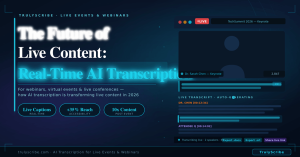
The virtual event industry exploded during 2020 and 2021, and it never fully retreated. In 2026, webinars, online conferences, virtual summits, and hybrid events are a permanent feature of how organisations communicate, educate, and generate leads. The production quality has improved dramatically. The audiences have grown. The expectations have risen.
But one gap has persisted: the moment a webinar or virtual event ends, the spoken content inside it largely disappears. Replays are watched by a fraction of the live audience. Q&A sessions are answered once and forgotten. Expert insights that took months to organise and hours to deliver are accessible only to people who attended at exactly the right time, in the right time zone, with enough attention to catch everything.
AI transcription is closing that gap in 2026. Real-time transcription during live events creates captions and accessible records as speakers talk. Post-event AI transcription turns the full recording into a searchable, repurposable content asset within minutes of the session ending. The result is that a single one-hour webinar can now generate a week’s worth of content, reach audiences who couldn’t attend live, and continue driving traffic and leads for months after the event date.
This guide covers how event organisers, marketers, and content teams are using AI transcription for live and virtual events in 2026 — the technology, the workflows, the accessibility benefits, and the step-by-step implementation for your next event.
The Hidden Content Loss Problem in Virtual Events
Every webinar and virtual event represents a significant investment. Speaker coordination, platform costs, promotional effort, slide design, pre-event emails, live facilitation — a professionally produced webinar typically represents 20 to 40 hours of work to deliver 60 minutes of content.
And then most of that content effectively disappears.
75% of webinar registrants who don’t attend live never watch the replay — they never access the content at all
6–10 pieces of high-value content that can be generated from a single webinar transcript
3x longer average time-on-page for event pages that include a full published transcript vs those with video only
The core problem is format. A video replay requires a significant time commitment from someone who already knows roughly what they’re going to find. A searchable, skimmable transcript changes that equation completely. Someone who missed the live event can read the full transcript in 15 minutes, find the specific section relevant to their question, and share a quote with their team — all without watching 60 minutes of video.
AI transcription transforms a video recording from a passive archive into an active, accessible, searchable content asset. That transformation starts with understanding the two distinct modes in which it works: real-time during the event, and post-event from the recording.
Real-Time vs Post-Event Transcription: Understanding the Two Modes
| Transcription Approach | Live / Real-Time Transcription | Post-Event AI Transcription |
| When available | Appears on screen as speakers talk | Ready 10–30 min after event ends |
| Accessibility | Live captions for deaf/HoH attendees | Transcript published for replay viewers |
| Attendee experience | Follow along in real time | Search and reference after the event |
| Accuracy | 90%+ with good audio; improves with adaptation | 92–96% on clear recorded audio |
| Content repurposing | Limited during live session | Full transcript available immediately post-event |
| Speaker correction | Real-time correction not always possible | Full review and edit before publishing |
| Best use case | Conferences, live product launches, live classes | Webinar replays, on-demand content, SEO |
Most event organisers in 2026 use both approaches together: real-time transcription for live accessibility and attendee experience during the session, and post-event AI transcription from the recording for content repurposing, SEO, and replay accessibility. They serve complementary purposes and should be thought of as two stages of a single transcription strategy rather than alternatives.
AI Transcription by Event Type: What Works for Each Format
| Event Type | Primary Transcription Use | Top Benefit |
| Marketing webinars | Post-event recap + SEO blog post | Drive organic traffic to replay page |
| Product launches | Live captions + full event transcript | Accessible to all + instant press content |
| Online conferences | Per-session transcripts + searchable archive | Attendees reference any session anytime |
| Virtual training / L&D | Training transcripts for participant reference | Searchable learning material after the session |
| Thought leadership panels | Transcript → blog post → newsletter → social | One event generates weeks of content |
| Internal all-hands meetings | Transcript for employees who couldn’t attend live | Inclusive, accessible company communication |
| Customer success webinars | Transcript for follow-up documentation | Detailed record of commitments and Q&A |
Real-Time Transcription During Live Events
Real-time AI transcription — sometimes called live captioning or live speech-to-text — converts spoken audio into text that appears on screen as the speaker talks, with a latency of typically 1 to 3 seconds. In 2026, it has become standard practice at professionally produced webinars and virtual events, driven by both audience expectations and accessibility legislation.
Why Live Captions Have Become Non-Negotiable
The case for live captions extends well beyond accessibility compliance, though that alone would be sufficient justification in many jurisdictions:
- Accessibility compliance: The Americans with Disabilities Act, the UK Equality Act, the EU Web Accessibility Directive, and equivalent legislation in many countries require that online events hosted by organisations be accessible to people with hearing impairments. Live captions are the primary mechanism for meeting this requirement in real-time events.
- Audience size: Approximately 430 million people worldwide have hearing loss. In a typical webinar audience of 500 people, statistically 20 to 40 attendees may benefit from captions — whether from hearing impairment, language barriers, or simply joining from a noisy environment.
- Non-native speakers: For webinars with international audiences, live captions help non-native speakers follow content more accurately. This is particularly important for technical or fast-paced presentations.
- Engagement and retention: Research on video content consistently shows that captions increase watch time and information retention, even among fully hearing audiences. Attendees who can simultaneously read and hear content absorb more of it.
- Noisy environments: A significant proportion of virtual event attendees join from open-plan offices, coffee shops, or shared home environments where audio is difficult. Captions allow full participation without requiring headphones.
How Real-Time AI Transcription Works in Practice
The most practical approach to real-time transcription for most webinar and virtual event organisers in 2026 combines the recording capabilities of existing conferencing platforms with post-recording AI transcription for the primary content asset. Here’s why:
- Platform-native live captions: Zoom, Microsoft Teams, Google Meet, and Webex all offer AI-powered live captions natively. These appear in the platform interface during the session. They are adequate for basic accessibility but vary in accuracy and cannot be exported in real time.
- Professional live captioning services: CART (Communication Access Realtime Translation) services provided by professional human captioners deliver the highest accuracy for live events. They are expensive, typically $100 to $200 per hour, and require advance booking.
- Third-party real-time AI caption tools: Tools like Otter.ai Live Notes and dedicated event captioning platforms overlay AI-generated captions on live streams. These typically offer higher accuracy than platform-native captions and additional features.
💡 Practical approach: For most webinar organisers, the highest-ROI strategy in 2026 is to enable the platform’s native live captions during the event for baseline accessibility, record the full session at the highest quality available, and then use TrulyScribe post-event to generate a comprehensive, accurate, and exportable transcript for all downstream uses.
Setting Up Live Captions on Major Platforms
Zoom Webinars:
- In Zoom’s Settings, navigate to Meeting → In Meeting (Advanced) and enable Closed Captioning.
- When hosting, click the Captions button in the control bar and select Enable Auto-Transcription.
- Attendees can toggle captions on or off in their own view.
Microsoft Teams Live Events:
- Live captions are available in Teams meetings by default. In Live Events, organisers can enable real-time captions from the event settings.
- Teams supports captions in multiple languages for international events.
Google Meet:
- Click the three-dot menu → Settings → Captions and enable live captions.
- Available for Workspace users; language support continues to expand.
YouTube Live / LinkedIn Live:
- YouTube Live offers automatic captions during live streams, accessible from the CC button on the player.
- LinkedIn Live provides auto-captions via its streaming infrastructure.
Post-Event AI Transcription: Turning Your Recording into a Content Engine
This is where the majority of the long-term value of webinar transcription is realised. Once your event has been recorded, AI transcription with TrulyScribe transforms that recording from a video file into a versatile, searchable content asset in under 30 minutes.
The Step-by-Step Post-Event Transcription Workflow
Step 1: Download your recording
- Zoom: Host portal → Recordings → Download MP4 (video) or M4A (audio only). Audio-only files are smaller and transcribe just as accurately.
- Teams: Recordings are saved to SharePoint or OneDrive. Download the .mp4 file from the recording link.
- Google Meet: Recordings are saved to the host’s Google Drive in the Meet Recordings folder. Download the .mp4.
- Webinar platforms (ON24, Hopin, Demio, Livestorm): Download the recording from your event dashboard. Most platforms export .mp4 or .mp3 formats.
Step 2: Upload to TrulyScribe
- Create your free account: Go to TrulyScribe.com. No credit card required. The free tier includes 15 hours on signup — enough for multiple full webinar sessions.
- Upload the recording file: TrulyScribe accepts .mp3, .mp4, .m4a, .wav, and all standard formats.
- Select the language: Choose the primary language of the event. TrulyScribe supports multiple languages, useful for international webinar series.
- Enable speaker diarization: Essential for webinars with multiple speakers, panellists, or Q&A sections. Each speaker’s contributions are automatically labelled.
- Click Transcribe: A 60-minute webinar typically processes in 10 to 15 minutes.
Step 3: Review and structure the transcript
The raw transcript needs light editing before it becomes a polished content asset:
- Add section headers: Identify the key topics or segments covered during the event and add H2 or H3 headers to break the transcript into navigable sections.
- Review speaker labels: Rename the generic “Speaker 1,” “Speaker 2” labels to actual speaker names and roles.
- Check proper nouns: Verify names, company names, product names, and technical terms against your event materials.
- Flag the best quotes: Highlight 5 to 10 standout quotes or insights during your review. These will fuel your social and email content.
- Add a brief introduction: Write a 100 to 150 word intro explaining the event context, speakers, and key topics. This helps readers and search engines understand the content.
Step 4: Export and distribute
- .docx: For writing your blog post, event recap, and documentation.
- .txt: For importing into CMS platforms, email tools, and content management workflows.
- .srt: Upload to YouTube, Vimeo, or your video hosting platform to add captions to the replay. This single file makes your replay accessible and improves video SEO simultaneously.
From One Webinar to a Week of Content: The Repurposing Playbook
The transcript from a single one-hour webinar is the source material for more content than most marketing teams produce in a week. Here’s exactly what you can generate and how long each piece takes:
| Content Type | How the Transcript Becomes It | Time to Produce |
| On-demand replay with captions | Export .srt from transcript, upload to video platform | 5 min |
| Event summary blog post | Edit key sections of transcript into an article | 30–60 min |
| Detailed show notes / recap | Pull timestamps, quotes, and key moments | 15–20 min |
| Email follow-up to attendees | Summarise top 5 insights from transcript | 15 min |
| LinkedIn / Twitter thread | Extract best quotes and stats as a thread | 10 min |
| Lead magnet / eBook chapter | Compile transcript into structured written guide | 1–2 hrs |
| Internal knowledge base article | Publish edited transcript to company wiki or LMS | 20–30 min |
| Podcast episode from the audio | Transcript becomes show notes + SEO-rich episode page | 20 min |
💡 Content multiplier: Run a 60-minute webinar once a month. With a transcript, that’s a blog post, a newsletter section, a LinkedIn thread, a YouTube captioned replay, an email follow-up, and a lead magnet — every single month. One event, six distribution channels, weeks of content.
The SEO Case for Publishing Webinar Transcripts
This is the most underappreciated benefit of webinar transcription among event marketers. Published transcripts don’t just make your content more accessible — they dramatically increase the organic search visibility of your event pages.
A webinar replay page without a transcript typically contains only a short description, an embedded video, and perhaps a few bullet-point highlights. To a search engine, this is a thin content page that ranks for almost nothing. The same page with a full published transcript contains thousands of words of keyword-rich content that Google can crawl, index, and rank for dozens of related search queries.
How transcripts improve webinar SEO specifically:
- Long-tail keyword coverage: A 60-minute webinar covers dozens of related subtopics. The transcript naturally contains the language that prospective attendees and buyers use when searching for those topics.
- Featured snippet eligibility: Clearly structured transcript sections — particularly Q&A exchanges where questions are posed and answered — are prime candidates for Google’s featured snippet results.
- Topical authority building: A library of webinar transcripts on related themes signals deep topical authority to search engines, improving rankings across the entire topic cluster.
- Time-on-page signals: Visitors who have both a video and a full transcript to engage with spend significantly more time on the page, sending a positive engagement signal to Google.
- Backlink acquisition: Written content earns links. Journalists, bloggers, and researchers who reference a webinar topic are far more likely to link to a page with searchable text content than one with only an embedded video.
💡 SEO best practice: Publish the transcript directly on the webinar replay page, not as a separate download or linked PDF. Text embedded on the page is indexed by Google. Text inside a PDF or behind a form gate is not.
Accessibility and Legal Compliance for Virtual Events
Transcription for virtual events isn’t optional for organisations subject to accessibility legislation — it’s a legal requirement in many jurisdictions. Understanding what is required, and what best practice looks like beyond minimum compliance, is increasingly important for professional event organisers.
Legal Requirements
- United States: Section 508 of the Rehabilitation Act requires federal agencies and organisations receiving federal funding to make online communications accessible. The ADA is increasingly interpreted to require accessible online events for businesses open to the public. Live captions and post-event transcripts address both requirements.
- United Kingdom: The Equality Act 2010 requires organisations to make reasonable adjustments for disabled people. For public webinars and events, providing captions and transcripts is considered a reasonable adjustment for deaf and hard-of-hearing attendees.
- European Union: The EU Web Accessibility Directive (2016/2102) requires public sector bodies to make web content and online services accessible. The European Accessibility Act, coming into full effect in 2025, extends these requirements to private sector organisations.
- WCAG 2.1 Guidelines: The Web Content Accessibility Guidelines recommend that all pre-recorded audio content include a text transcript, and that live audio content include real-time captions. These guidelines are referenced by accessibility legislation across multiple jurisdictions.
Beyond Compliance: Inclusion as a Competitive Advantage
Organisations that treat accessibility as a minimum compliance exercise tend to underinvest in it and miss the broader audience growth opportunity. Organisations that treat accessibility as a design principle for their events build larger, more loyal, more diverse audiences.
A webinar with live captions, a published post-event transcript, and a captioned replay is accessible to:
- Deaf and hard-of-hearing attendees who would otherwise be excluded entirely
- Non-native speakers who process written English more easily than spoken English
- Attendees in different time zones who watch the replay at 2x speed with captions
- Neurodiverse attendees who benefit from multi-modal content delivery
- Attendees in loud environments who can’t listen to audio
- People who prefer to read rather than watch — a large and underserved audience
Every one of these groups is a potential customer, client, or community member who is currently excluded from events that don’t provide transcription. The audience you’re not reaching is the audience you’re not converting.
Best Practices for Transcribing Webinars and Virtual Events
- Use a headset or quality microphone: The single most impactful factor in transcription accuracy. Built-in laptop microphones produce audio that is significantly harder to transcribe accurately. Ask all speakers to use headsets or dedicated microphones.
- Test audio before every event: Run a 60-second audio check at the start of the technical rehearsal and listen back to it. Poor audio discovered in testing can be fixed; poor audio discovered in the recording cannot.
- Introduce all speakers clearly: A clear spoken introduction of each speaker at the start of the session (“Joining us today is Dr Sarah Chen, Head of AI Research at…”) gives the transcription model accurate context for speaker names.
- Avoid heavy background music: Background music or ambient sound during speaking portions significantly reduces transcription accuracy. Keep any music to intro and outro only.
- Provide speaker notes or a script to your transcription tool context: If your event uses highly technical vocabulary, prepare a glossary of key terms and check these specifically during your review pass.
- Record at the highest quality available: Choose the highest-quality recording option in your webinar platform settings. A 720p or 1080p recording typically produces better audio quality than a compressed recording.
- Assign a post-event transcript owner: Designate one team member as responsible for uploading, reviewing, and distributing the transcript within 24 hours of the event. Content published quickly captures the most SEO and social momentum.
Platform Integrations: Getting Your Webinar Transcript into Your Tech Stack
Once you have a clean, reviewed transcript from TrulyScribe, here’s how it integrates with the most common webinar and content workflows:
- Zoom + TrulyScribe: Download the Zoom cloud recording as .mp4 or .m4a. Upload to TrulyScribe. Export transcript as .docx for content use and .srt for Zoom’s caption upload feature.
- Webinar platforms (ON24, Demio, Livestorm, Hopin): Download the event recording from your dashboard. Upload to TrulyScribe. Publish the .txt transcript via your platform’s on-demand replay transcript field.
- YouTube: Upload the webinar replay as a YouTube video. Upload the .srt caption file from TrulyScribe via the Subtitles section of YouTube Studio. Captions appear automatically, time-synced, improving both accessibility and YouTube search ranking.
- Vimeo: Upload the .srt file via Video Manager → Subtitles & Captions for any video on Vimeo Business or Pro plans.
- WordPress / CMS: Paste the .txt transcript into a text block below the video embed on your event page. Add a “Full Transcript” anchor heading for SEO and user navigation.
- Email platforms (HubSpot, Marketo, Mailchimp): Use the transcript to write your post-event email follow-up. Pull direct quotes for subject line A/B testing.
- CRM / Sales enablement: Share transcripts of customer-facing webinars with your sales team as reference material for follow-up conversations.
Frequently Asked Questions
What is the difference between live transcription and post-event transcription?
Live transcription generates text in real time as speakers talk, typically with 1 to 3 seconds of latency. It appears as captions during the event and serves primarily an accessibility and attendee experience function. Post-event transcription processes the recording after the event concludes, typically takes 10 to 30 minutes to produce, and results in a more accurate, fully reviewable transcript used for content repurposing, SEO, and documentation. Most professional event organisers use both: live captions during the event and post-event AI transcription for all downstream content work.
How accurate is AI transcription for webinars?
On clear webinar audio from a headset or quality microphone, AI transcription tools like TrulyScribe achieve 90 to 96% accuracy. Common error types are proper names, brand names, and technical or industry-specific vocabulary. A light review pass of 10 to 20 minutes typically addresses all material errors before publishing. Accuracy decreases with background noise, poor microphone quality, or heavy accents — all of which can be addressed with good audio hygiene before the event.
Can I transcribe a webinar that was recorded on Zoom, Teams, or Google Meet?
Yes. Download the recording from your platform’s recording management area as an .mp4 or .m4a file and upload it directly to TrulyScribe. No format conversion is required. Zoom cloud recordings, Teams meeting recordings stored in SharePoint, and Google Meet recordings saved to Drive all work perfectly with TrulyScribe’s transcription engine.
Do I need to get attendee consent to record and transcribe a webinar?
Best practice and legal requirements vary by jurisdiction and event type. For public webinars where recording is standard practice, notify attendees in the event registration confirmation and in the pre-event communications that the session will be recorded and that a transcript may be published. For closed or private events, explicit consent from all participants is advisable. Consult your legal team or data protection advisor if you are unsure of the applicable requirements in your jurisdiction.
How do I add captions to my webinar replay on YouTube?
Export your TrulyScribe transcript as an .srt file. In YouTube Studio, navigate to the video you want to caption, click the Subtitles tab, and upload the .srt file. YouTube will automatically sync the captions to the audio timeline. Captions improve both the accessibility of your replay and its discoverability in YouTube search results.
What should I do with the transcript once I have it?
At minimum: publish it on the webinar replay page for SEO and accessibility. Beyond that, the highest-value actions are writing a summary blog post from the transcript, sending a post-event email with the top insights pulled from the transcript, uploading the .srt file to your replay video for captions, and sharing the top three to five quotes on social media. These five actions together can be completed in under two hours and will extend the reach and value of your event content significantly beyond what the live session alone achieved.
Is TrulyScribe free for webinar transcription?
Yes. TrulyScribe offers 10 minutes of free transcription every day with no credit card required, and 15 free hours of transcription when you sign up. For most webinar producers, the signup bonus covers several full sessions before you need to consider a paid plan. For regular webinar series, a paid plan provides unlimited transcription at pricing designed for individuals and small teams rather than enterprise licences.
Your Webinar Content Deserves a Longer Life
The live moment of a webinar is just the beginning. In 2026, the organisations extracting the most value from their virtual events are not those with the biggest audiences in the room — they are those with the best systems for capturing, distributing, and repurposing what was said after the room has emptied.
AI transcription is the enabling technology for that system. It makes live events accessible to everyone in real time. It transforms a recording into a searchable content asset in 15 minutes. It gives your marketing team the raw material for a week of content from a single session. And it starts completely free.
Your next webinar is an opportunity. A transcript is how you take it.
🎙️ Transcribe your next webinar for free: app.trulyscribe.com/register | No credit card required. 15 hours free per month on signup.